
Developer Information
Company: Microsoft Corporation
Address: One Microsoft Way
Website: Support Web
Email: Support Email
Privacy Policy: Privacy Policy
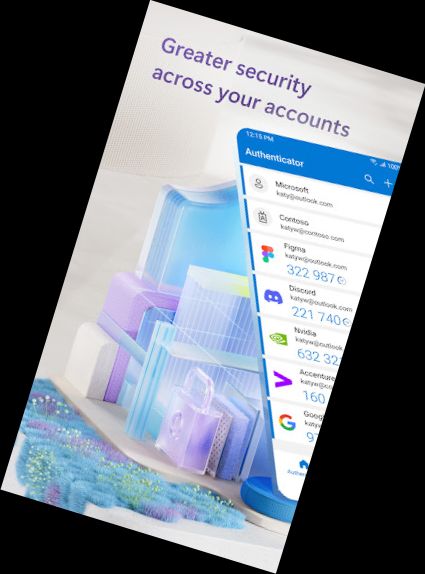
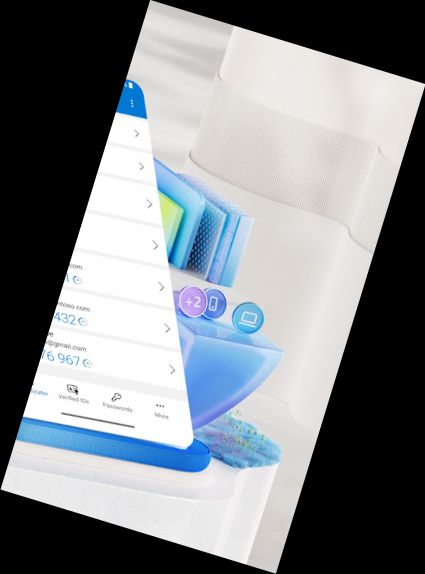
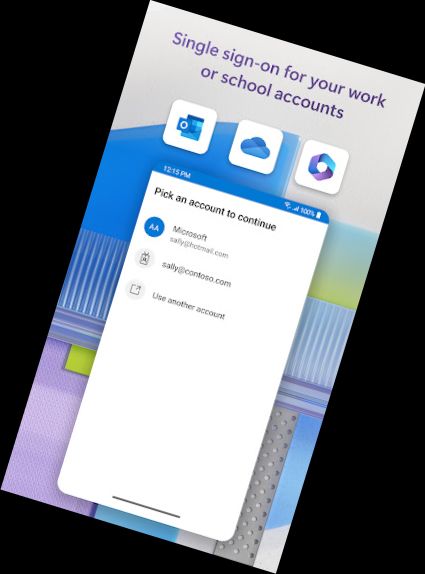
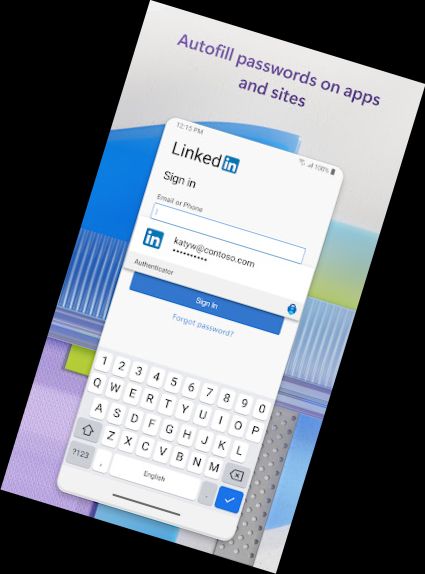
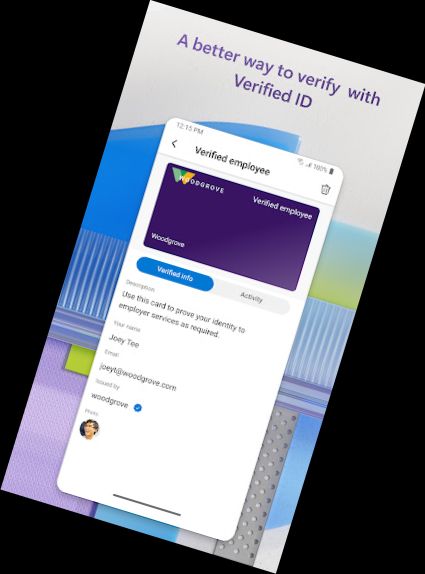
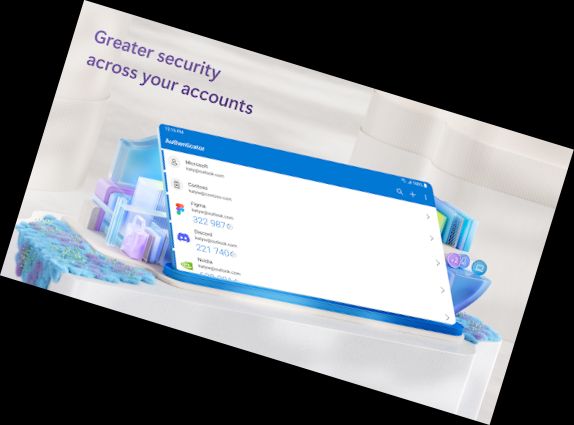
Use the Microsoft Authenticator app for hassle-free, secure logins to all your online accounts with features like multi-factor authentication, passwordless sign-in, or password autofill. You'll also have additional account management options for your Microsoft personal, work, or school accounts.
Getting started with multi-factor authentication
Multi-factor authentication (MFA) or two-factor authentication (2FA) adds an extra layer of security to your online accounts. When you log in with MFA, you'll enter your password, then verify your identity through a notification in the Microsoft Authenticator app or a one-time password (OTP) generated by the app. OTPs have a 30-second timer to ensure you never reuse the same code and don't need to memorize it. You can add multiple accounts, including non-Microsoft accounts like Facebook, Amazon, Dropbox, Google, LinkedIn, GitHub, and more.
Getting started with passwordless
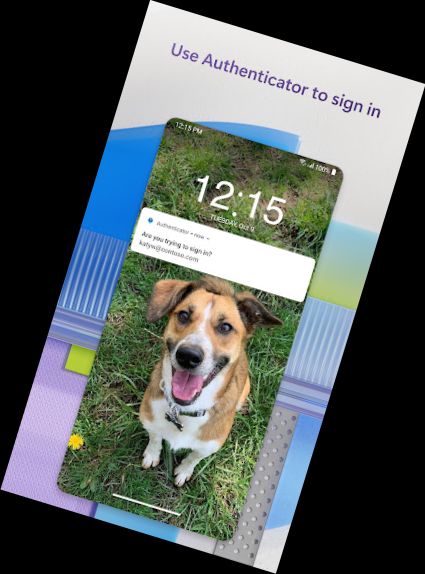
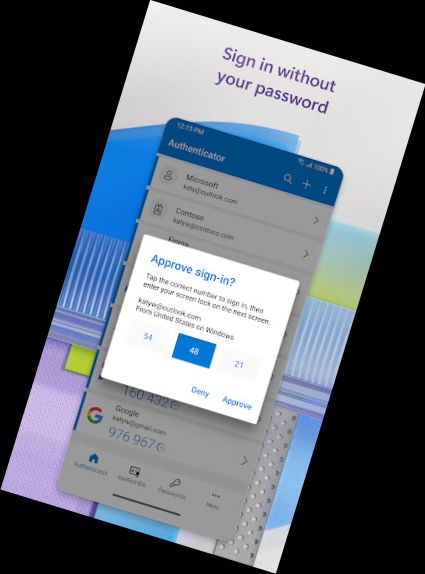
Use your phone instead of a password to log into your Microsoft account. Simply enter your username, then approve the notification sent to your phone. Your fingerprint, face ID, or PIN provides an additional layer of security in this two-step verification process. After signing in with 2FA, you'll have access to all your Microsoft products and services, including Outlook, OneDrive, Office, and more.
Getting started with autofill
The Microsoft Authenticator app can autofill passwords for you. Sign in to the Passwords tab with your personal Microsoft account to start syncing passwords, including those saved in Microsoft Edge. Set Microsoft Authenticator as your default autofill provider to start autofilling passwords on apps and sites you visit on your mobile. Your passwords are protected with MFA in the app, and you'll need to verify your identity with your fingerprint, face ID, or PIN to access and autofill passwords. You can also import passwords from Google Chrome and other password managers.
Microsoft personal, work, or school accounts
Your organization may require you to install Microsoft Authenticator to access certain files, emails, or apps. You'll need to register your device and add your work or school account. Microsoft Authenticator supports cert-based authentication, issuing a certificate on your device to verify your identity and grant seamless access to Microsoft apps and services. With single sign-on, you'll only need to log in once to access multiple Microsoft apps on your device.
Optional access permissions:
Microsoft Authenticator includes the following optional access permissions, which require your consent. You can still use the app without granting these permissions, but some features may not be available.
Versions
-
6.2410.7271
—
·
Download
Android 8.1.0+
We're always working on new features, bug fixes, and performance improvements. Make sure you stay updated with the latest version for the best authentication experience.